How to connect Vitek 2 with MedX Automation
MedX Automation connects to the Biomerieux Vitek 2 using the ASTM protocol over TCP/IP. This guide walks you through configuring communication between the machine and the Automation app.
✅ This guide assumes:
- The Automation application is already installed and running
- The Biomerieux Vitek 2 has been added as a device
(See: How to connect medical devices with MedX Automation)
🔌 Connecting the Machine to the Network
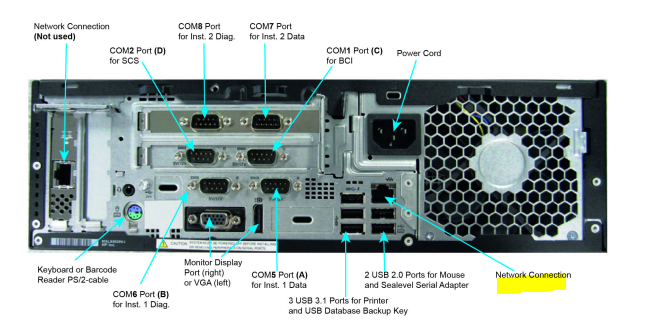
Ensure the Ethernet cable is firmly connected to the network port on the VITEK 2 machine.
Look for the port labeled or highlighted in yellow.
⚙️ Configuring Communication Using BCI Link
Step 1: Launch BCI Link
- On the host computer, double-click the BCI Link shortcut on the desktop.
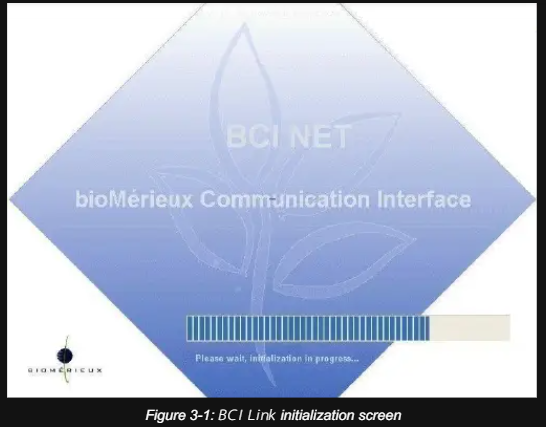
- Wait for the BCI Link initialization screen.
Step 2: Log in
-
Once initialized, the login window appears.
-
Enter the following credentials:
Login:    LabAdmin
Password: Lab_Admin -
Click OK to proceed.
Step 3: Access the Dispatcher Configuration
After login, the BCI Link main screen appears. Look for the Dispatcher Configuration option.
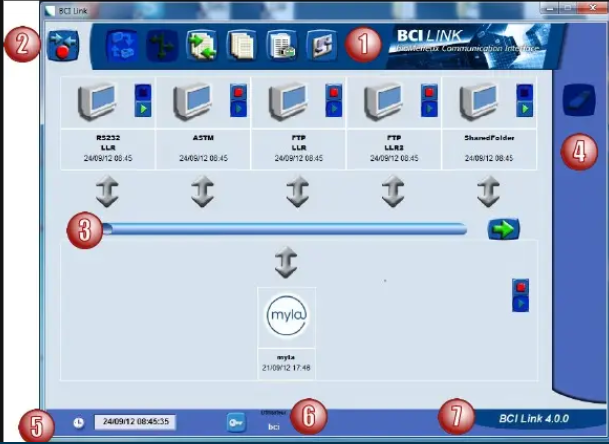
- Click on Dispatcher Configuration (button 6).
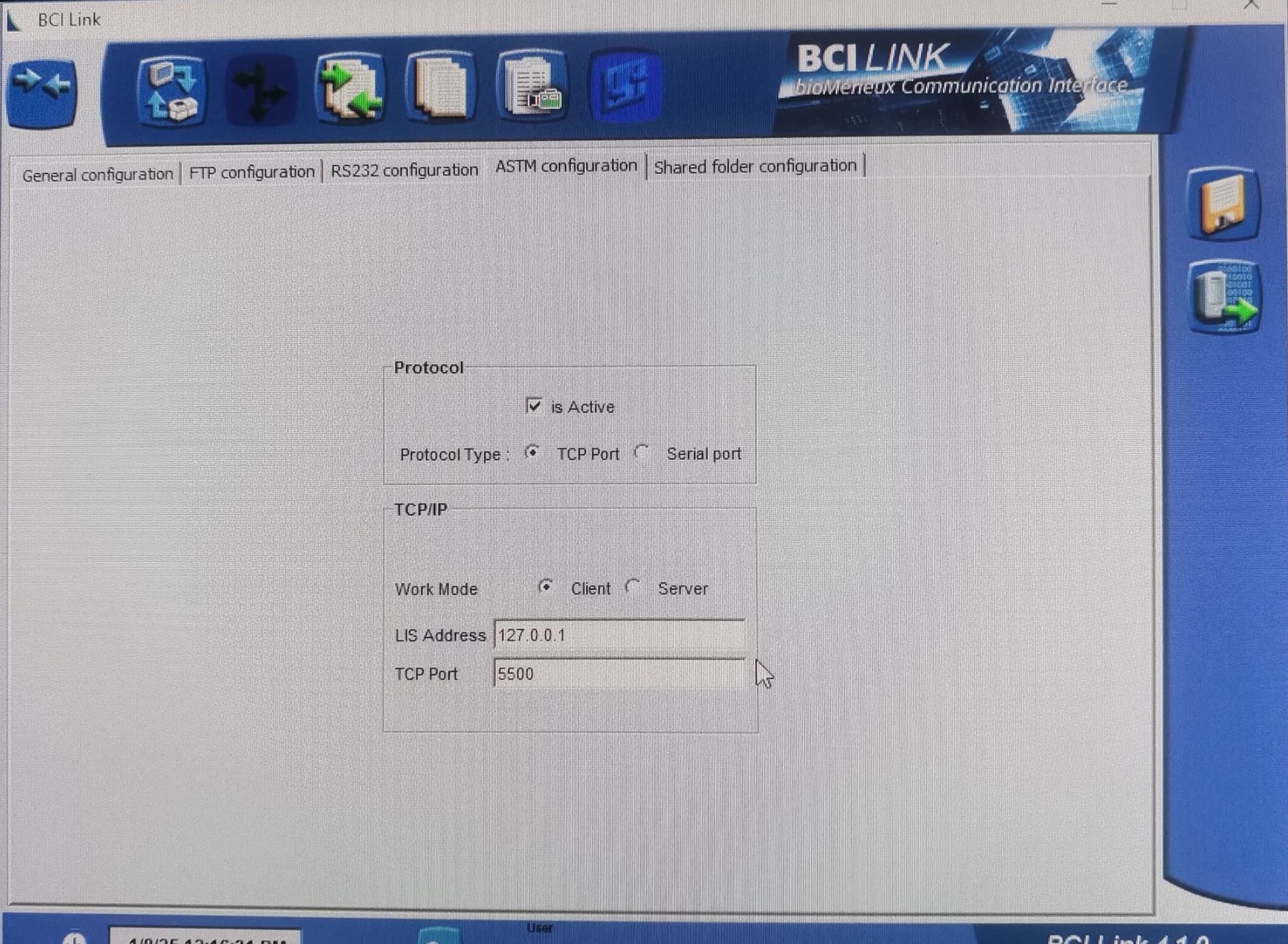
- Go to the ASTM Configuration tab.
Step 4: Configure ASTM Settings
Set the following values:
| Field | Value |
|---|---|
| Protocol | Active |
| Protocol Type | TCP Port |
| Work Mode | Client |
| LIS Address | (As provided by Automation) |
| TCP Port | (As provided by Automation) |

📤 Sending Results
Sending test results via FTP
- Go to the Operation Log Table in BCI Link.
- Select the row with the test result to send.
- Click the Send button.
You’ll receive a confirmation once the result has been sent.

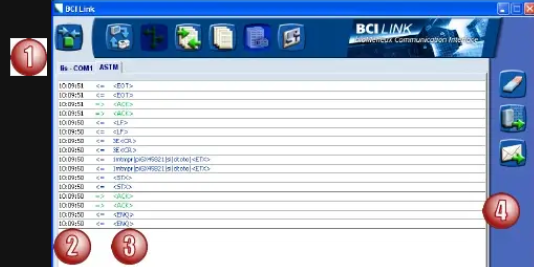
Sending test results via VITEK 2 System Worklist
-
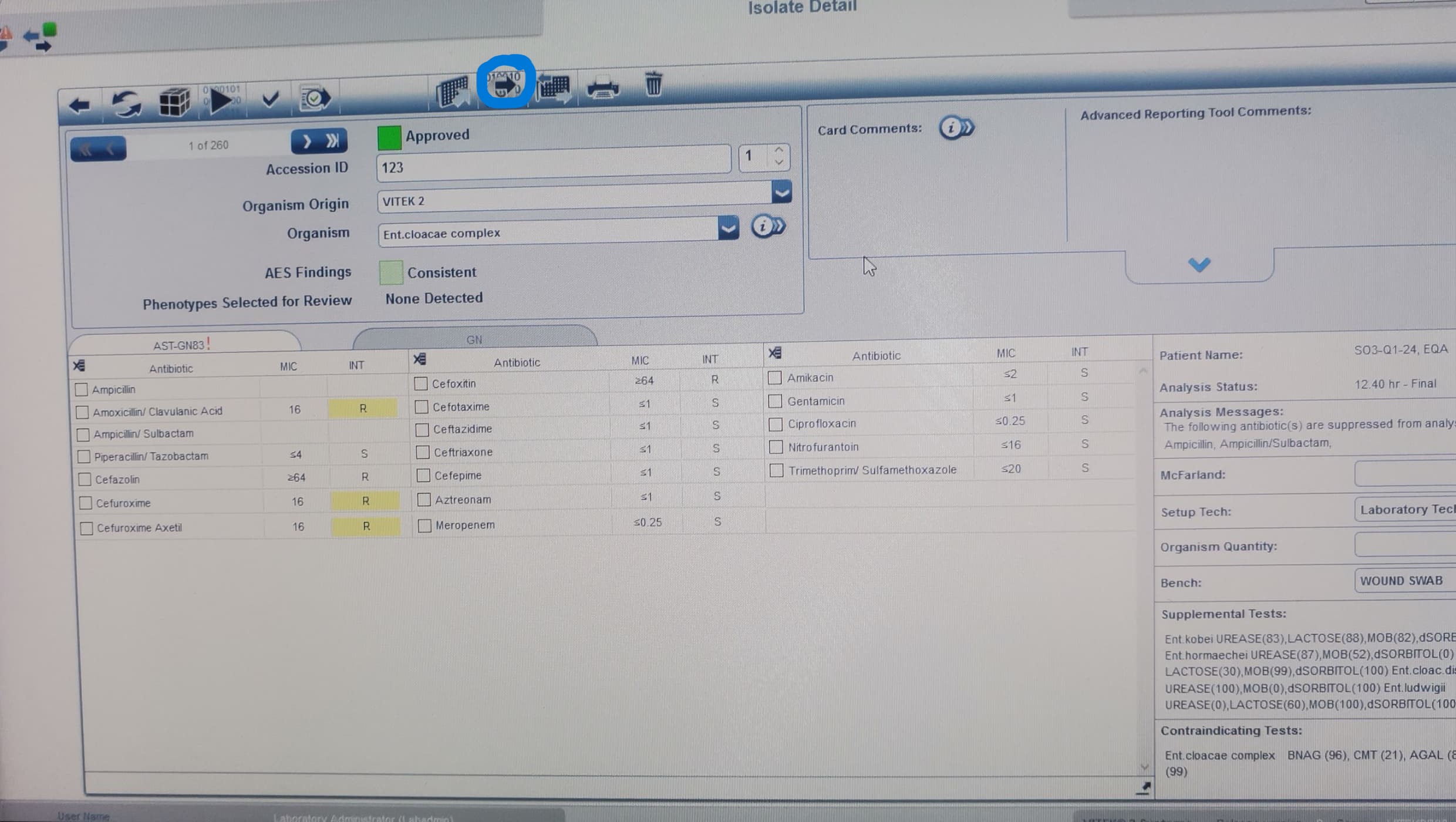
Access the Worklist: In the Vitek 2 Web system, navigate to the Worklist to view available results.
-
Select Result(s): Choose the test result(s) you want to send to the LIS.
-
Review and Approve: Double-check each result for accuracy and approve it.
-
Export to LIS: Click Export to transmit the approved results. Confirm the action if prompted.
✅ Final Tips
- Confirm that the IP address and TCP port match those configured in Automation.
- Ensure no firewalls block communication between the VITEK 2 and the LIS PC.
- Always approve results before attempting to export.