How to connect Abbott Afinion 2 with MedX Automation
MedX Automation connects with the Abbott Afinion 2 via TCP/IP using the HL7 communication protocol.
✅ Before you begin:
- Ensure the Automation app is installed and running on a computer connected to the same network as the Afinion 2.
- The Afinion 2 must already be added as a device in the Automation app.
See: How to connect medical devices with MedX Automation
📚 Reference Documentation
🔌 Connecting to the Network
Plug an Ethernet cable into Port 1 on the analyzer, as shown below:
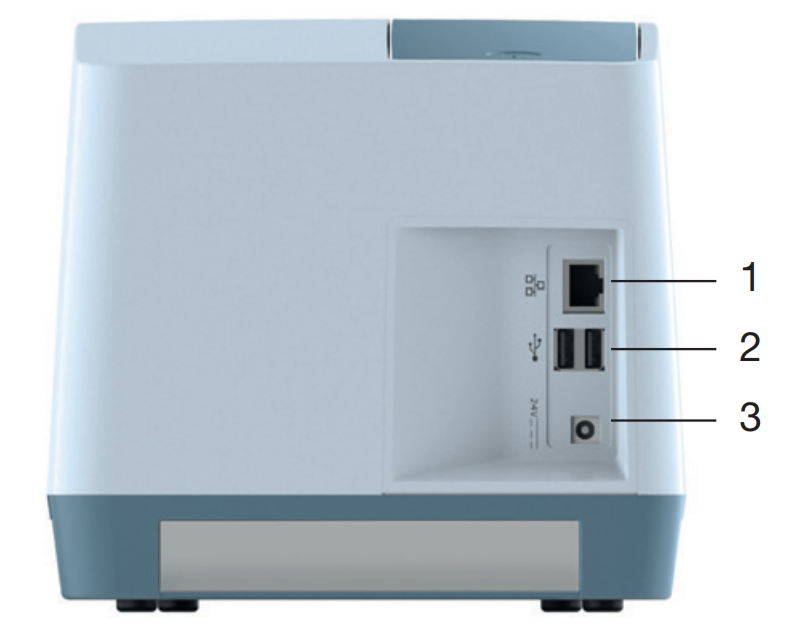
Then, go to the Settings menu → Network Configuration.
You can either:
- Use DHCP (recommended) to automatically assign an IP address
- Or manually enter network details with help from your IT administrator
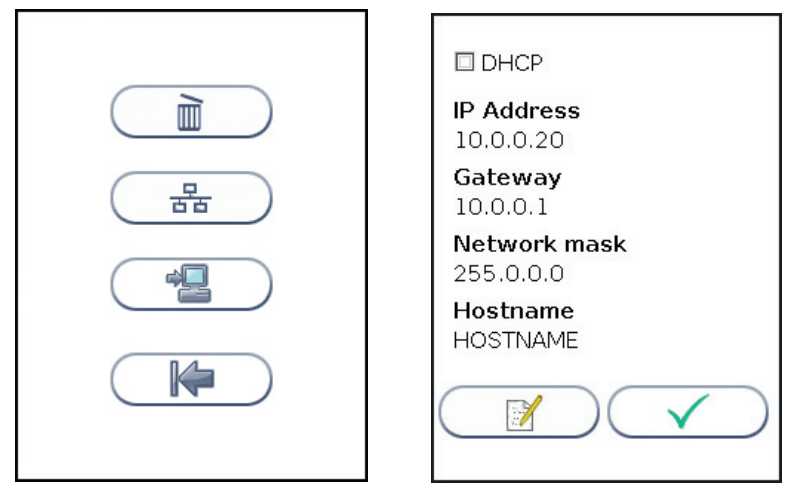
⚙️ Configuring Communication Settings
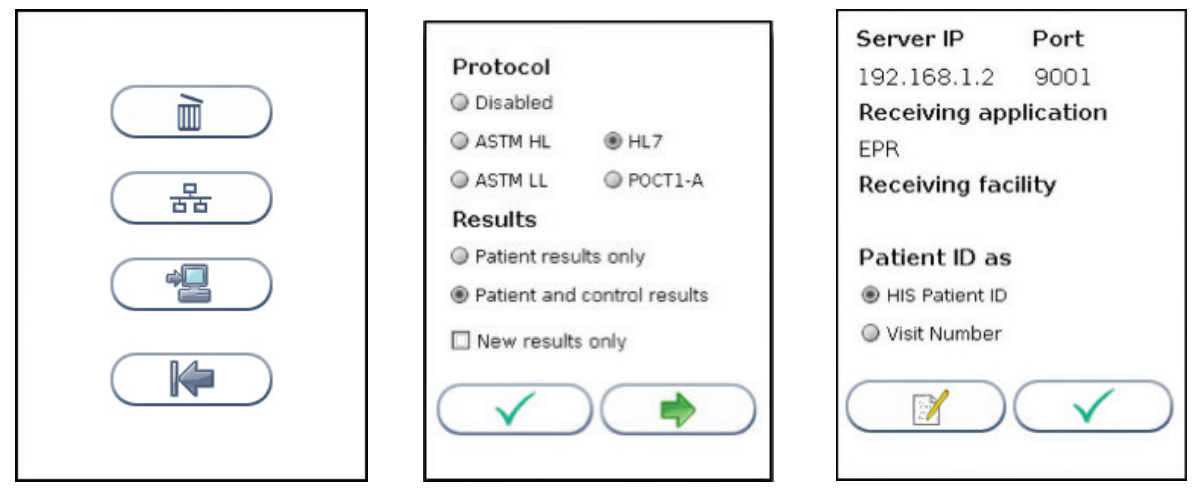
Under Settings → Communication Settings, make the following changes:
- Select
HL7as the protocol - Enable Patient and Control results
- Uncheck "New results only"
- Set Server IP and Port to match the values shown in the Automation app
- Set Receiving Application to
MedX Automation - Set Patient ID to
HIS Patient ID
📤 Sending Results
- Once configuration is saved, the analyzer will automatically send all previous results once.
⚠️ These results will not be re-sent even if the settings are changed later.
- After that, all new completed test results will be automatically transmitted to Automation.
- There is no manual upload feature. If Automation is offline when a result is completed, the analyzer will retry sending it once the connection is restored.